

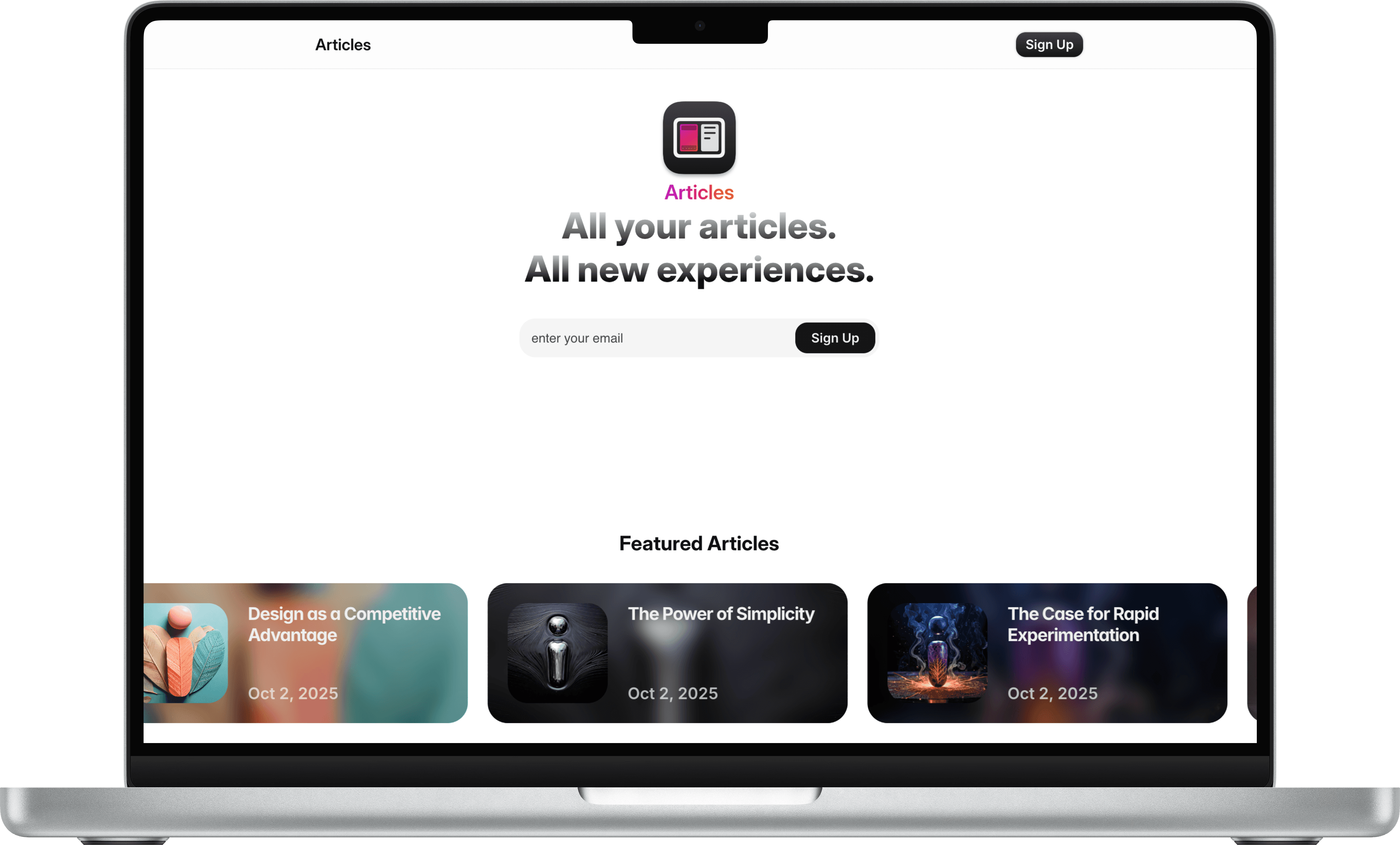
Getting Started with the Articles Template
Congratulations on choosing the Articles Template. You’ve just picked one of the cleanest ways to share your thoughts online — a writing space that focuses purely on your words, not distractions. The design is already tuned for clarity and flow, so you don’t have to think about layout or formatting before you begin.
Start from the remix (license) link you received after purchase. Use that link to create or duplicate the project in your Framer account. Create your account if you haven’t already, then open the shared/remix project and duplicate it as your working copy. Keep the original copy as a clean master.
Open your duplicated project and go straight to the CMS tab. This is where every article is managed. To add content: open the Articles collection, then choose “Add new item” or open an existing item to edit.
When you add or update an item in the CMS, save and then use the platform’s publish action to push content live. The template does not rely on manual page editing for articles — the CMS provides the single source of truth.
Homepage behavior. The template maps CMS fields into these homepage components: the hero shows the featured article, a “latest article” strip shows the most recent item (article of the week), a feed shows more articles to read, and a section surfaces author cards and “more from this author.” If an item has the featured toggle on, it appears in the hero; otherwise it joins the feed in chronological order.
Article page layout. When a visitor opens an article, the left column shows the thumbnail card and controls: title, author, date, genre, and the navigation controls (previous / next). The heart icon is decorative only — it does not collect data. The right column is the article content pulled from the CMS body field. Below the content, the author’s note appears as a quoted block and the download button links to the attached file(s). If you provided multiple artwork files, they will render as intended in the artwork area and be available for download.
Navigation and signup. The top navigation includes a Sign up button. That button opens an overlay card where visitors can enter their email. This overlay ties to your newsletter provider; configure it in Integrations. Common integrations supported: Mailchimp, ConvertKit, Beehiiv, and similar — add API keys or form actions in the platform’s integration/settings area.
Footer. Terms, privacy, and legal pages are linked from the footer on every page — populate those pages and links before asking your visitors to subscribe or transfer data.