

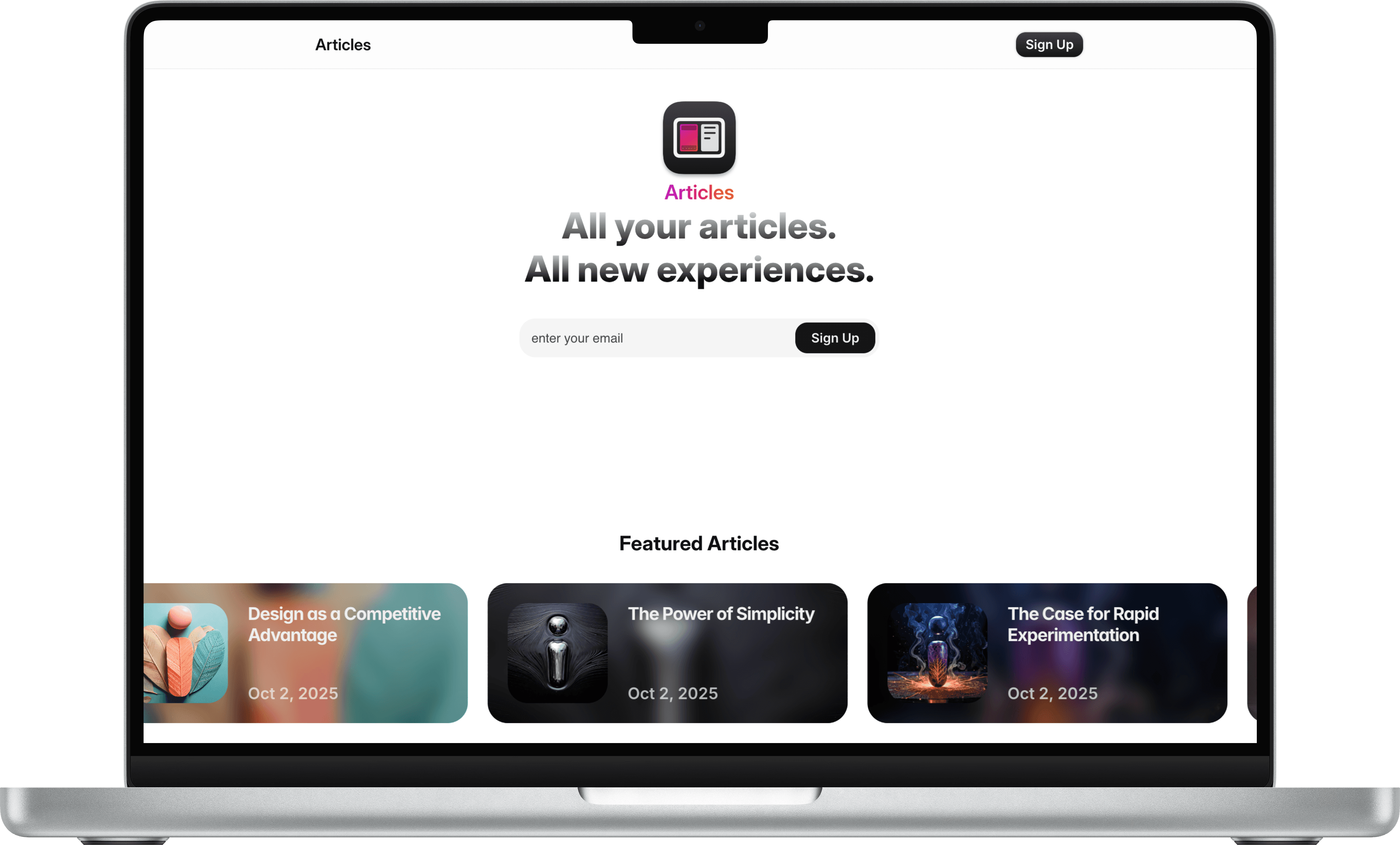
Customizing the Articles Template
Customization is limited to safe, intentional changes: identity, color/typography tokens, CMS metadata, and how collections are surfaced. Do not edit or remove core collection field names — the template maps those names to the layout. If a field name is changed, the template will fail to render correctly.
Brand identity and header. Replace the logo file in the header container with your brand asset. Update the site name text only if necessary. Keep the logo within the original bounding area so navigation spacing remains intact. If the template exposes a global accent color or font variables, change them there — a single variable change updates the whole site consistently.
Typography and colors. Use the theme tokens provided. Change the base type scale and accent color in the design settings. Small adjustments are safer: preserve line-height and base scale ratios. After each change, preview desktop and mobile.
Collections behavior. Adding new categories or authors is done in the Categories and Authors collections. To add a new category, open Categories > Add new, set the slug and label. For authors, add name, photo, short bio, and an optional prominence flag. The template uses the prominence flag to populate author spotlight areas. Do not delete built-in fields (Title, Date, Featured) from the Articles collection — editing those fields is expected; removing them breaks mapping.
Images and downloads. Upload artwork into the designated artwork fields (up to three). The template will display artwork as hero, inline, or in a gallery depending on the article layout. For downloadable assets, attach full files to the download field — the download button is rendered automatically on the article page and links to those files.
Homepage and hero control. The hero is fed by the featured toggle. Toggling multiple featured items is supported but order may need manual adjustment via the Date field or an ordering flag if provided.
Sign up overlay and integrations. Configure the Sign up overlay action by adding your newsletter provider’s form action or API keys in Integrations. Test by subscribing a test email. The overlay should submit, then show a confirmation message. If you use Mailchimp or ConvertKit, paste the form action URL into the overlay’s form settings.
Author cards and author’s picks. Author cards are populated from the Authors collection. If you want “More from this author,” ensure each article’s Author field is linked correctly and add author bio and social links in the Authors collection.